
Internal linking is essential for SEOs because it directly impacts how authority flows across your site, influences user engagement, and affects crawlability and indexation rates as well as user flow efficiency for UX metrics.
However, implementing an effective internal linking strategy at scale can be time-consuming and virtually impossible to do manually. That’s why SEOs are always looking for ways to automate the process.
This article provides a step-by-step guide to building an internal linking recommender: a tool that can suggest the top five most relevant pages for internal linking opportunities, based on a specific URL or a main query.
The goal is to simplify decision-making, improve accuracy in selecting related pages, and create a fully relevant and scalable linking structure.
Common challenges at scale
Internal linking becomes more complex and different challenges arise the larger the site. What works for a 100-page site becomes unmanageable at 1,000 pages and nearly impossible at 10,000+. That brings about three core challenges:
Semantic connections across a large number of pages
The more URLs there are, the harder it becomes to identify the best linking opportunities in regards to semantic similarity.
Uneven link distribution
Without systematic tracking, some site sections accumulate excessive internal links while others remain orphaned or under-linked.
Maintenance
Internal linking isn’t a one-time task. As you publish new content, existing pages need updated links to maintain relevance. Manual maintenance quickly becomes a bottleneck that limits content velocity.
These issues affect the flow of link equity and make it harder to secure top positions in search results.
Why an internal linking recommender matters for SEOs
The internal linking recommender addresses several of the key challenges. It creates stronger semantic connections among pages, boosting topical authority while automating repetitive work.
The automation frees SEO teams to focus on strategy development rather than manual link placement.
Beyond efficiency, the tool enhances user experience through better navigation and increases engagement. Proper internal linking also allows pages to gain authority without requiring external links, and thus reducing off-page SEO costs.
[Case Study] How Prisjakt improved user experience thanks to a better internal linking structure

Approaches for internal linking
There are various methods for internal linking. Each has its distinct trade-offs between accuracy, scalability, and technical complexity. We’ll go through all of them so you can determine which one is the best fit for your specific needs.
| Approach | How it works | Scalability | Semantic accuracy | Technical requirements |
|---|---|---|---|---|
| Manual | Use site search or Google’s site: operator to find and add links manually Best for: Small sites, cornerstone content, niche sites | Poor (impractical beyond 100–500 pages) | Variable (depends on judgment) | None (time and domain knowledge only) |
| Programmatic | Auto-link pages via predefined rules: categories, tags, authors, content type Best for: E-commerce, news sites, taxonomy-driven platforms | Excellent (any scale) | Low (misses semantic nuances) | Low (basic scripting) |
| Semantic Similarity | Convert content to embeddings; use cosine similarity to find related pages Best for: Content-heavy sites, blogs, knowledge bases | Good (large sites with proper infrastructure) | High (genuine semantic relationships) | High (NLP/ML, vector databases) |
| Hybrid: SERP + Semantic | Query Google with site:domain.com, filter results, fall back to semantic similarity Best for: Sites with 1,000+ pages prioritizing topical authority | Excellent (efficient API-based) | Very high (Google’s algorithm + embeddings) | Medium (API integrations, basic Python) |
Manual approach limitations
- Not scalable and time-consuming: Doing this for a site with 1K pages already seems impractical. For sites with over 10K pages, it becomes virtually impossible.
- High risk of human error: Important pages may be overlooked, leading to incomplete internal linking.
- Subjective linking: Page selection usually depends on individual judgment, making the process less reliable.
Programmatic approach limitations
The biggest drawback is that it does not create precise semantic connections between content, which can negatively impact topical authority.
Semantic similarity limitations
- Requires high technical expertise: Implementing this approach requires strong knowledge of NLP and ML concepts.
- Vector management at scale: Storing and managing vectors for a large number of pages can be complex.
- High processing costs: Generating embeddings for a large volume of pages requires significant computational resources.
- Complexity in updates: Continuously updating embeddings when content changes can be challenging.
- Model quality dependence: The accuracy heavily depends on the embedding model, which can be lower for certain languages, such as Persian.
Hybrid approach (SERP + semantic similarity) and why it wins
The hybrid approach, combining SERP analysis with semantic similarity, offers the best balance for most sites. It leverages Google’s own relevance signals while maintaining semantic precision, making it the foundation of the internal linking recommender tool we will build in the following sections. The tool will automate most of this process and significantly reduce manual work.
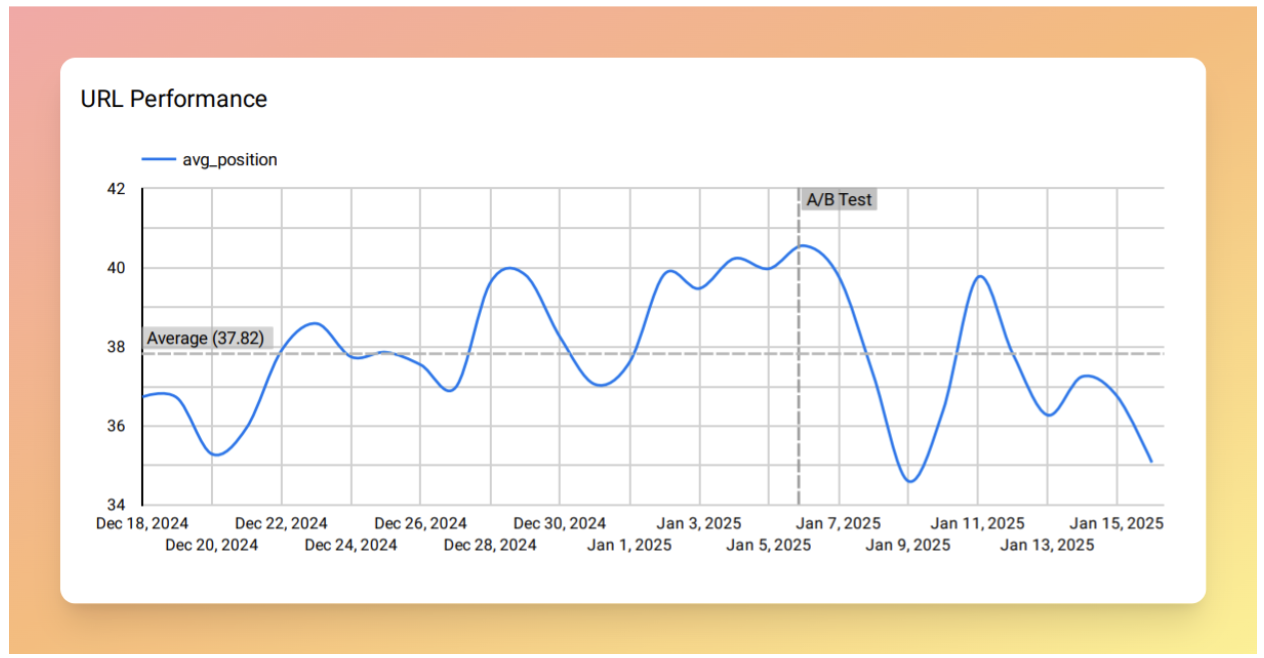
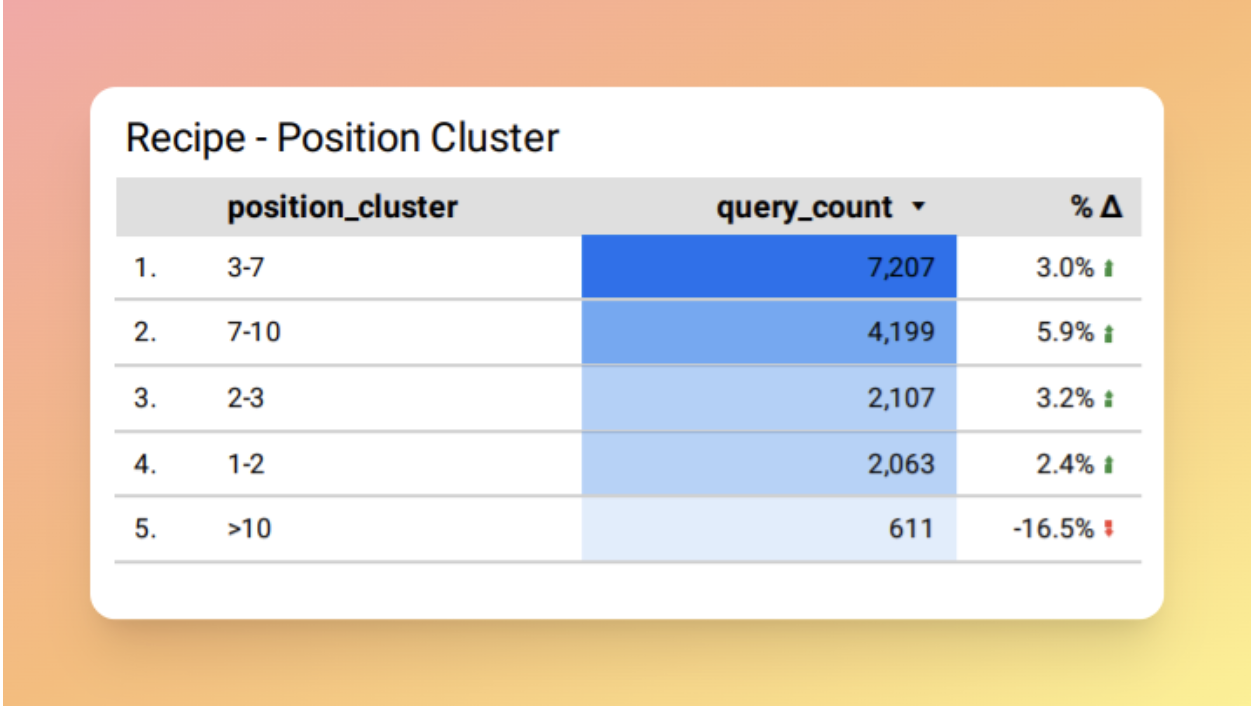
Example results
This tool has been tested on several websites and has delivered strong results. You can see examples of performance growth in the images below.
Prerequisites
To run the tool, you need Python 3.11 or higher installed and you should install the required libraries (such as openai, scikit-learn, google-auth, etc.) via the requirements.txt file.
You’ll also need an OpenAI API key for embeddings, a Serper.dev account to scrape SERP results, and Google Service Account credentials to read and write data in a Google Sheet.
If you are not familiar with Python, the libraries, or APIs, the next section provides detailed setup instructions.
Building an internal linking recommender
This section guides you through setting up and running the tool. We’ll start with a high-level overview of the pipeline, then walk through how to set up and run the tool.
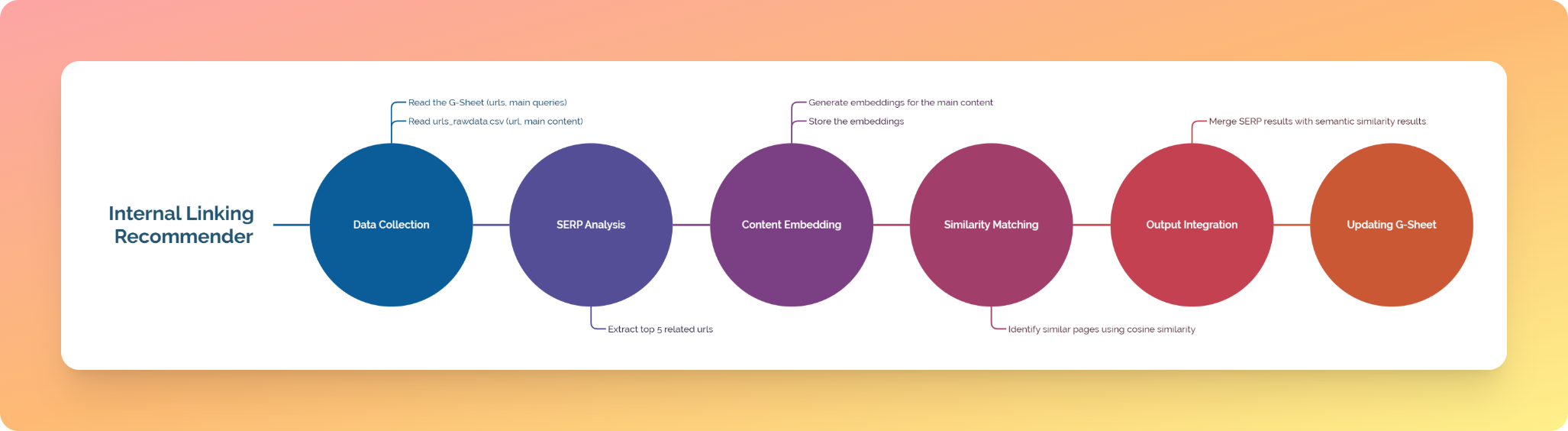
1. Data collection
Reads input from two sources:
- GoogleSheets (URLs, Main Queries)
- urls_rawdata.csv (URLs, Main Contents)
2. SERP analysis
Extracts the top 5 related URLs for each of your pages.
3. Content embedding
Generates embeddings for the main content in urls_rawdata.csv and stores them in vectorized_urls.csv.
4. Similarity matching
Identifies similar pages using cosine similarity.
5. Results integration
Merges SERP results with semantic similarity results.
6. Output update
Updates the Google Sheet with the integrated results.
Important note: Content embeddings are cached after the first run, so subsequent executions only process new or changed content, significantly reducing API costs.
Setup and configuration
The setup process includes five main steps. Follow them in order to make sure everything works correctly.
Step 1: Download and extract the project
Using GitHub (recommended):
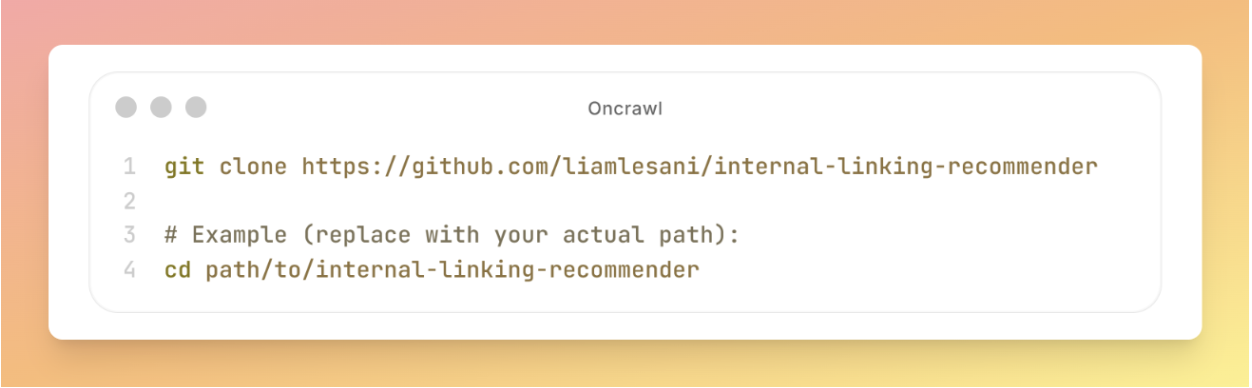
 git clone https://github.com/liamlesani/internal-linking-recommender

# Example (replace with your actual path):
cd path/to/internal-linking-recommender
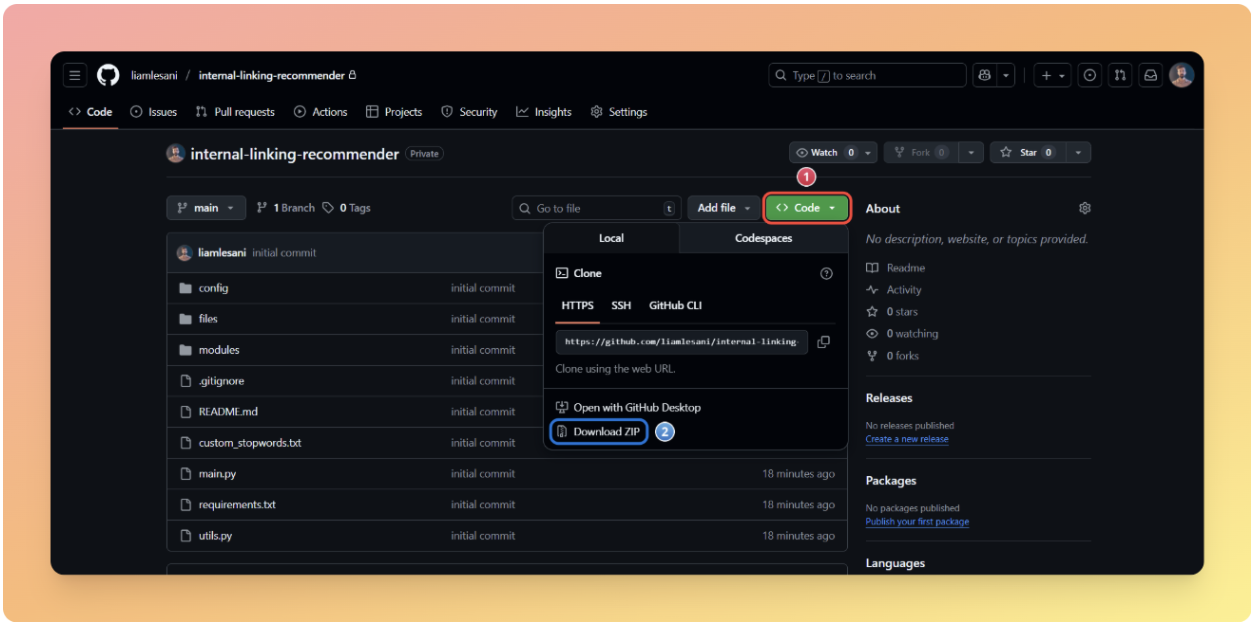
Without GitHub:
- Go to the project’s repository
- Click the green Code button and then select Download ZIP
- Extract the ZIP file to an accessible location
Step 2: Create and activate a virtual environment
A virtual environment provides an isolated workspace that keeps your project’s packages separate from other projects and from the system-wide Python installation. This prevents conflicts and ensures everything runs smoothly.
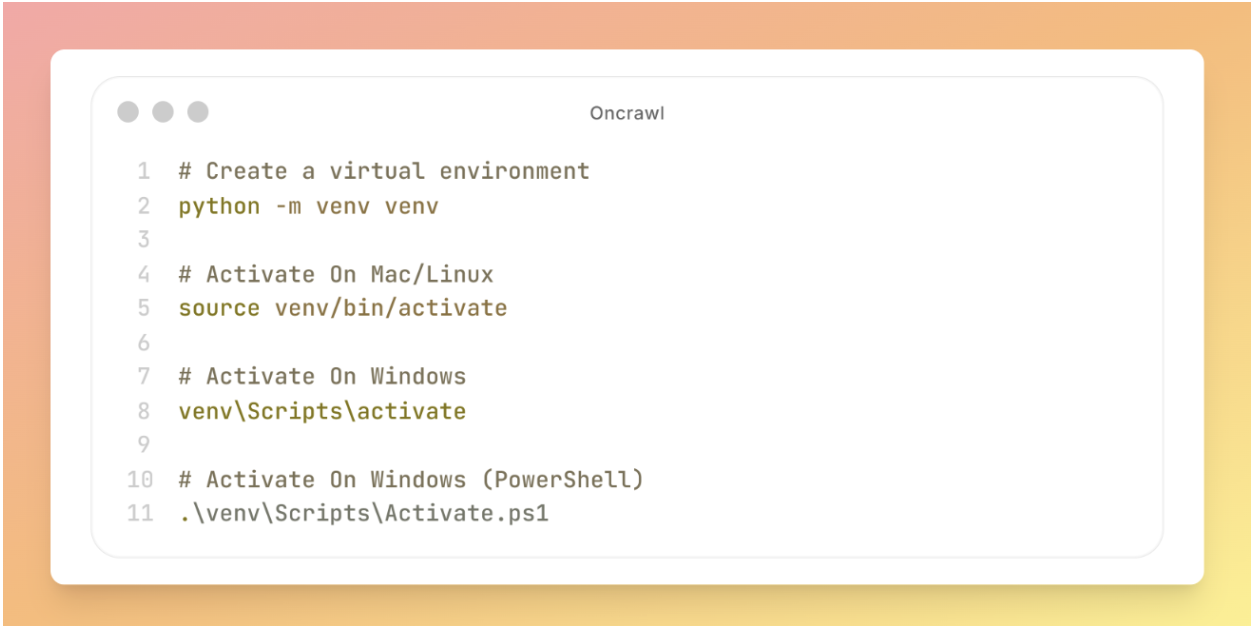
# Create a virtual environment
python -m venv venv

# Activate On Mac/Linux
source venv/bin/activate

# Activate On Windows
venv\Scripts\activate

# Activate On Windows (PowerShell)
.\venv\Scripts\Activate.ps1
Verification: After activation, your terminal prompt should show (venv) at the beginning.
Step 3: Installing the required packages
With your virtual environment activated, install all the required libraries using the following command:

# Install the required packages with:
pip install -r requirements.txt
If you encounter a “pip not found” error, use the following command:
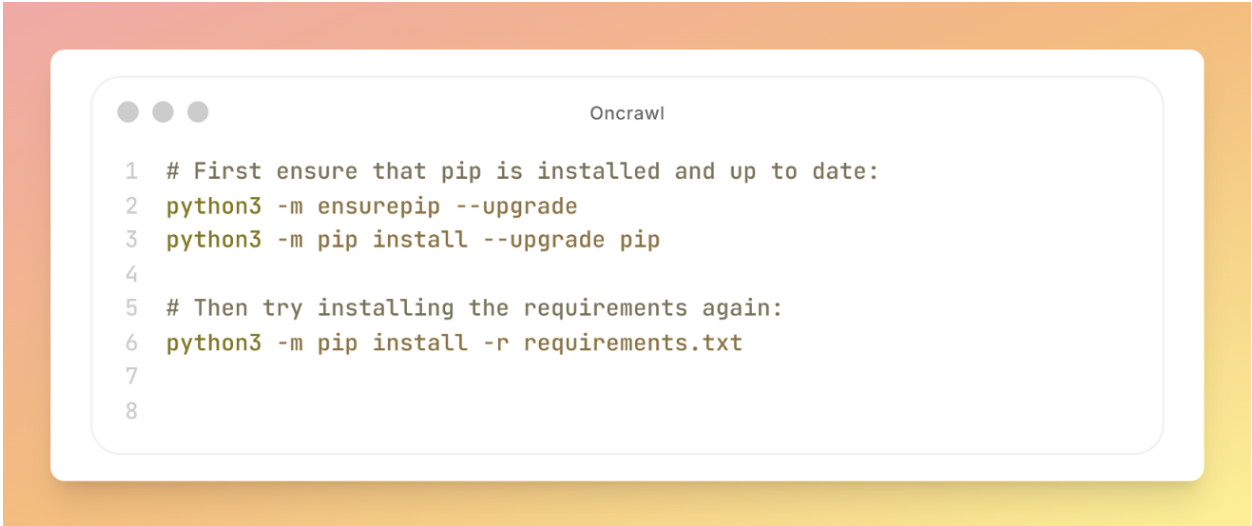
# First ensure that pip is installed and up to date:
python3 -m ensurepip --upgrade
python3 -m pip install --upgrade pip

# Then try installing the requirements again:
python3 -m pip install -r requirements.txt
Expected output: You should see packages being installed with progress indicators.
Step 4: Configure the API and access keys
In this step, you need to open the config folder and replace the placeholders with your own API keys.
4a. Serper API
The first API required for this tool comes from Serper. It provides the SERP data for internal link discovery.
If you already have an account:
- Log in to your account.
- Go to the serper.dev/api-keys page.
- Generate a new API key.
If you don’t have an account:
1. Create a free account at [serper.dev](https://serper.dev).
2. Navigate to [serper.dev/api-keys](https://serper.dev/api-keys).
3. Click Create New Key (or copy your existing key).
4. Open `config/serper_api_key.txt` in your project.
5. Paste the key on a single line with no quotes, spaces, or extra characters.
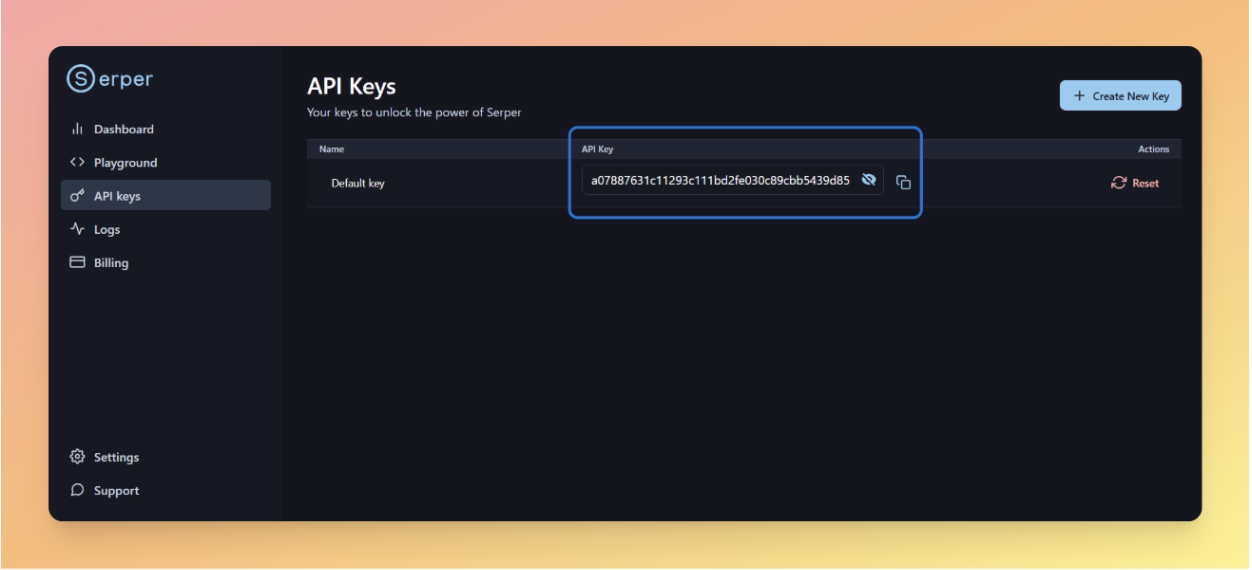
Tip: The API key should be on a single line without quotes or spaces.
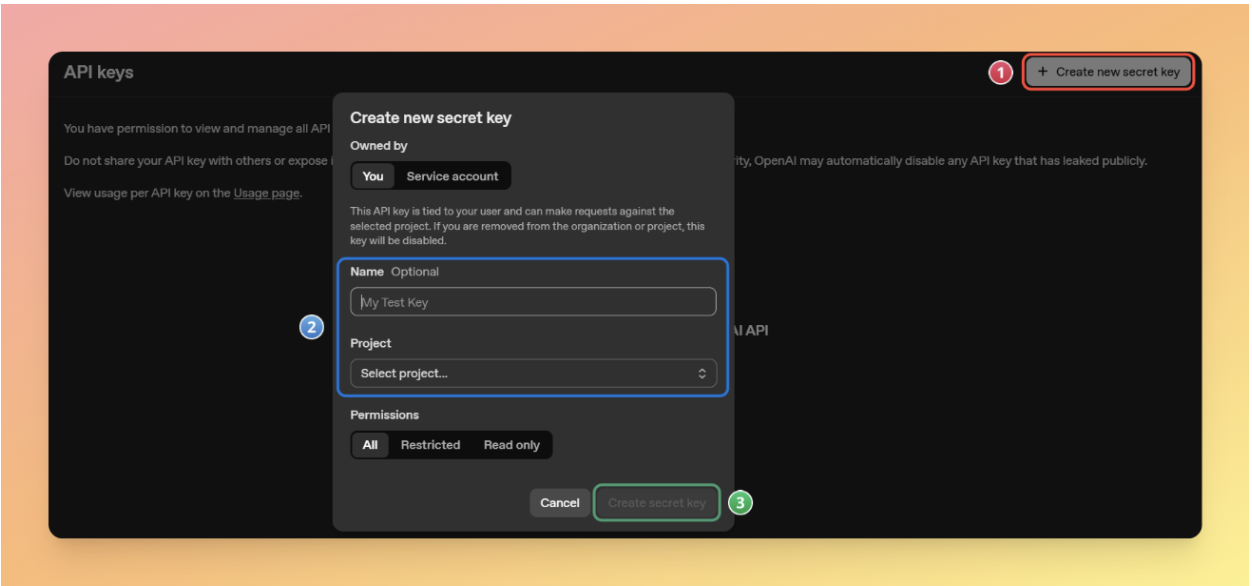
4b. OpenAI API
The second API is from OpenAI, which is used for generating embeddings.
- Log in to your account.
- Go to platform.openai.com/api-keys.
- Click Create new secret key
- Name your key.
- Copy the key immediately (you won’t be able to see it again).
- Open config/openai_api_key.txt in your project.
- Paste the key on a single line.
Important note: To use the OpenAI API, you need to add credits to your account:
- Go to platform.openai.com/settings/organization/billing
- Add at least $5 credit to your account (minimum purchase).
4c. Google Cloud service account credential
The third thing you’ll need is a Google Cloud service account credential so the tool can read and write data in Google Sheets.
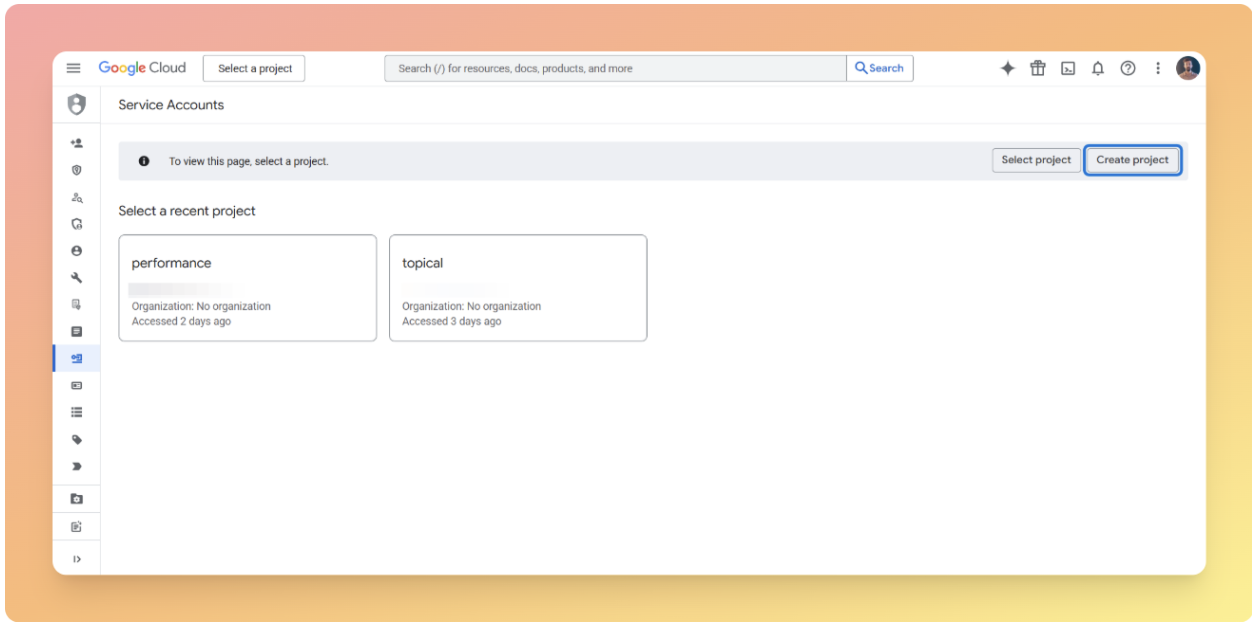
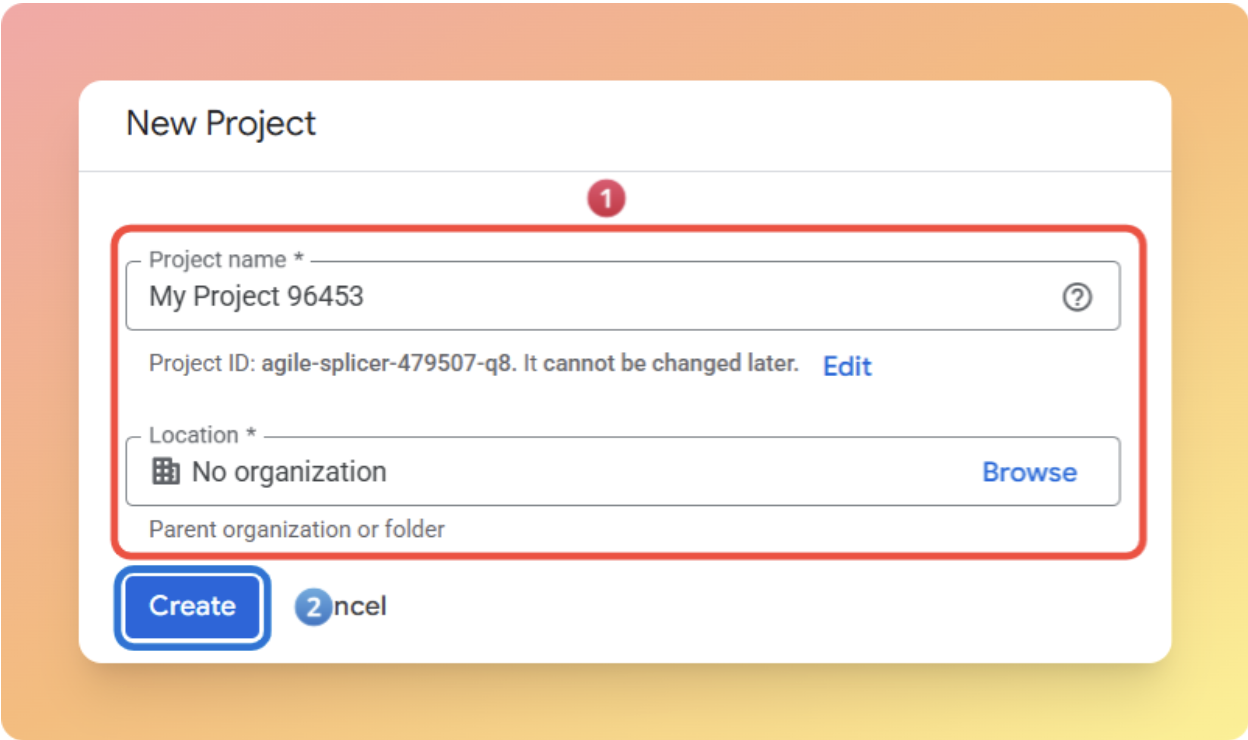
Create a project:
- Go to console.cloud.google.com/iam-admin/serviceaccounts.
- If prompted, click Create project or Select a project.
- Enter a project name.
- Click Create.
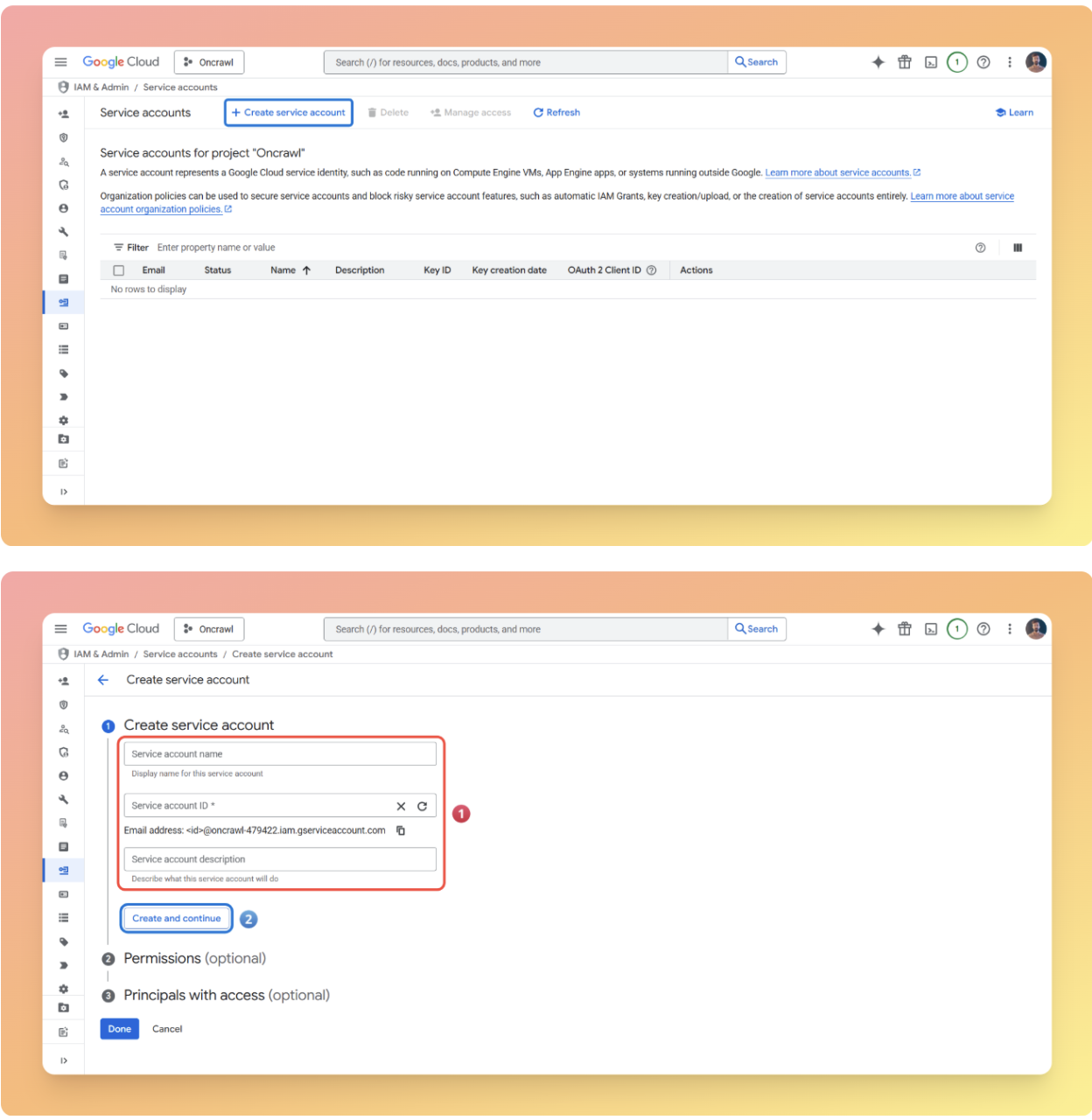
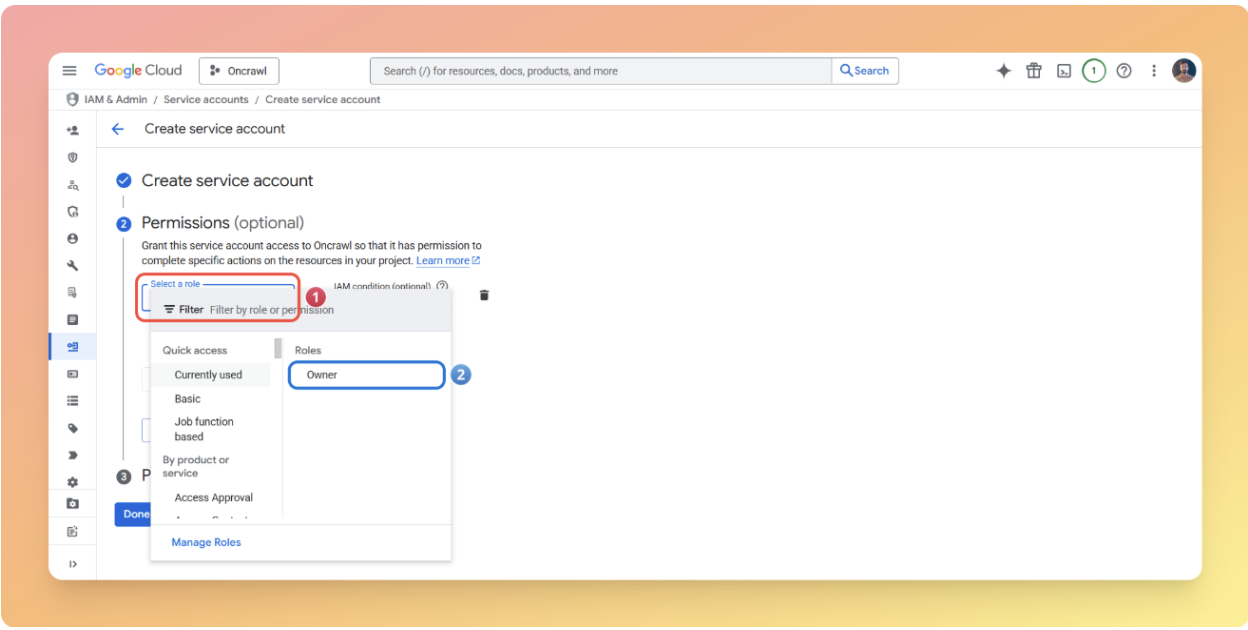
Create a service account:
- Click Create service account.
- Enter a service account name.
- Click Create and continue.
- In the Permissions dropdown, search for and select Owner.
- Click Continue -> Done.
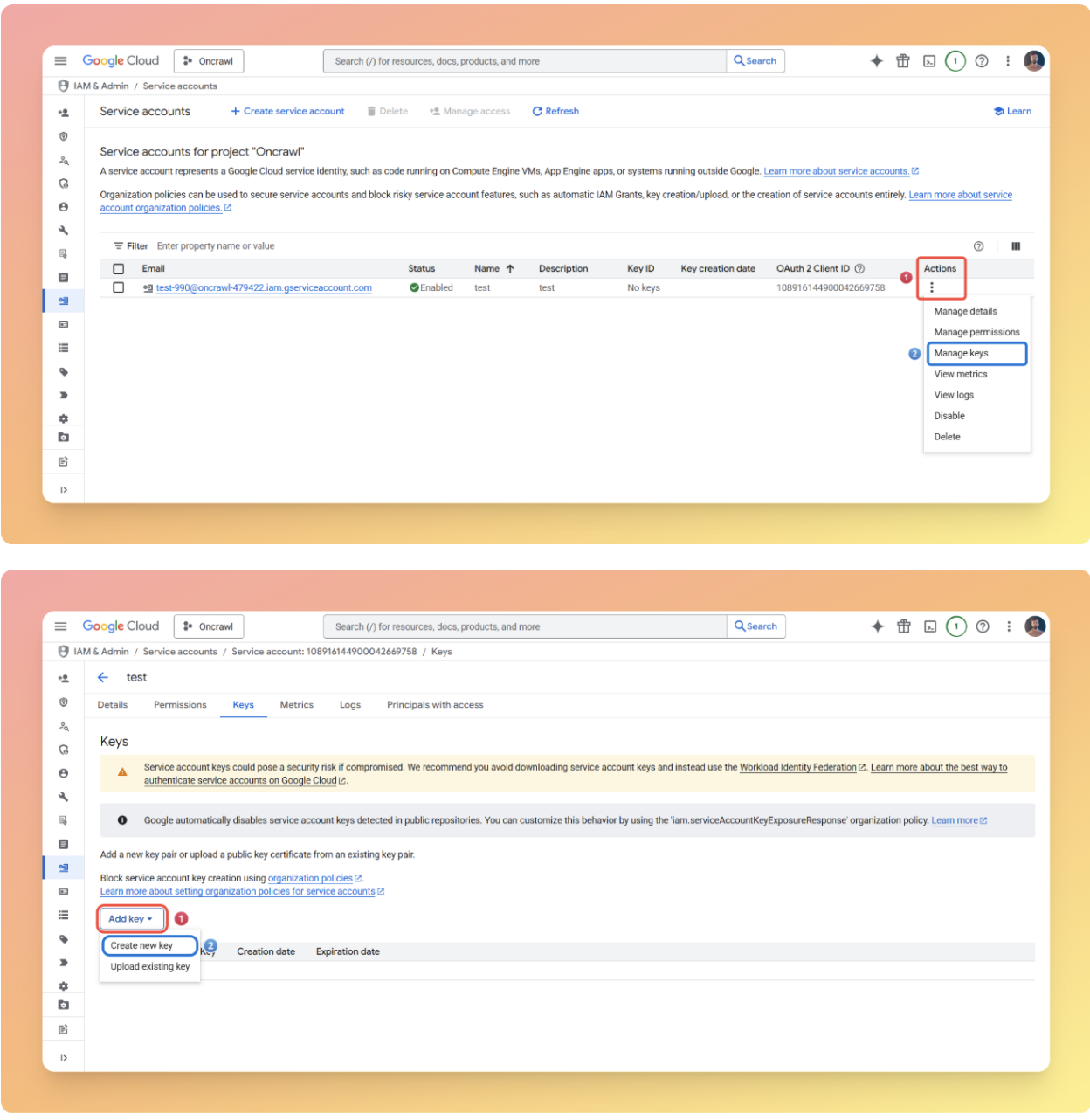
Generate credentials:
- Find your newly created service account in the list.
- Click the three dots (⋮) under Actions, then select Manage keys.
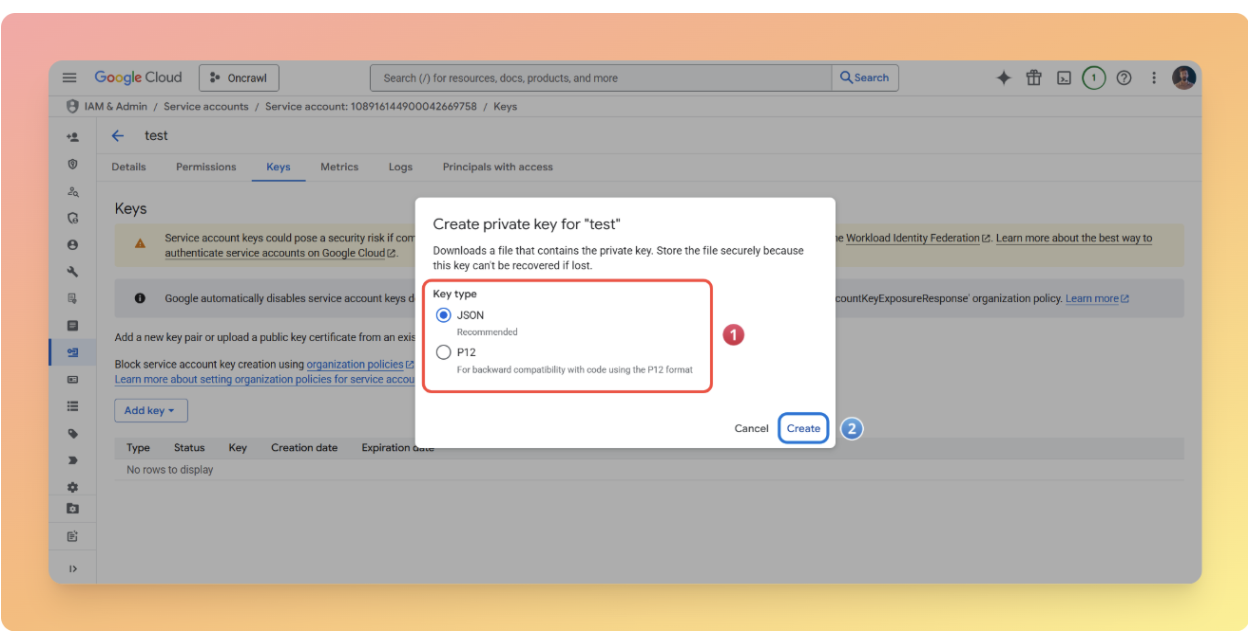
- Click Add key → Create new key.
- Select JSON format.
- Click Create.
A JSON file will download.
Add credentials to project:
- Open the downloaded JSON file in a text editor.
- Copy its full contents.
- Open config/service_account.txt in your project.
- Paste the JSON content.
- Save the file.
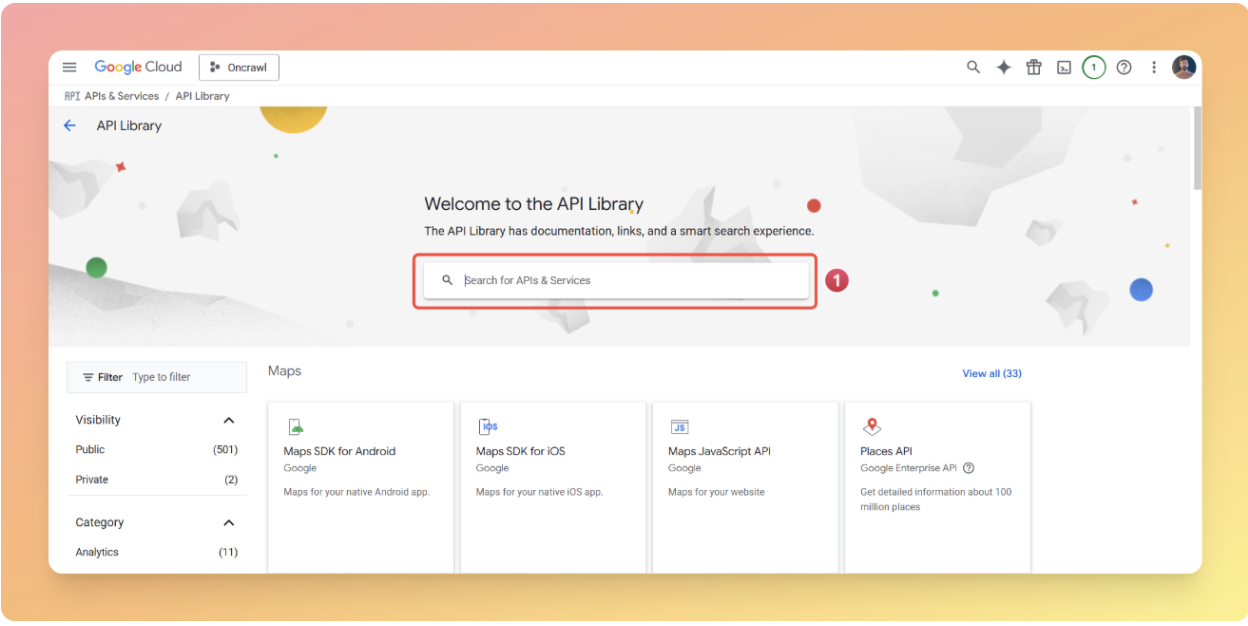
Enable required APIs:
The service account needs access to Google Sheets and Drive APIs.
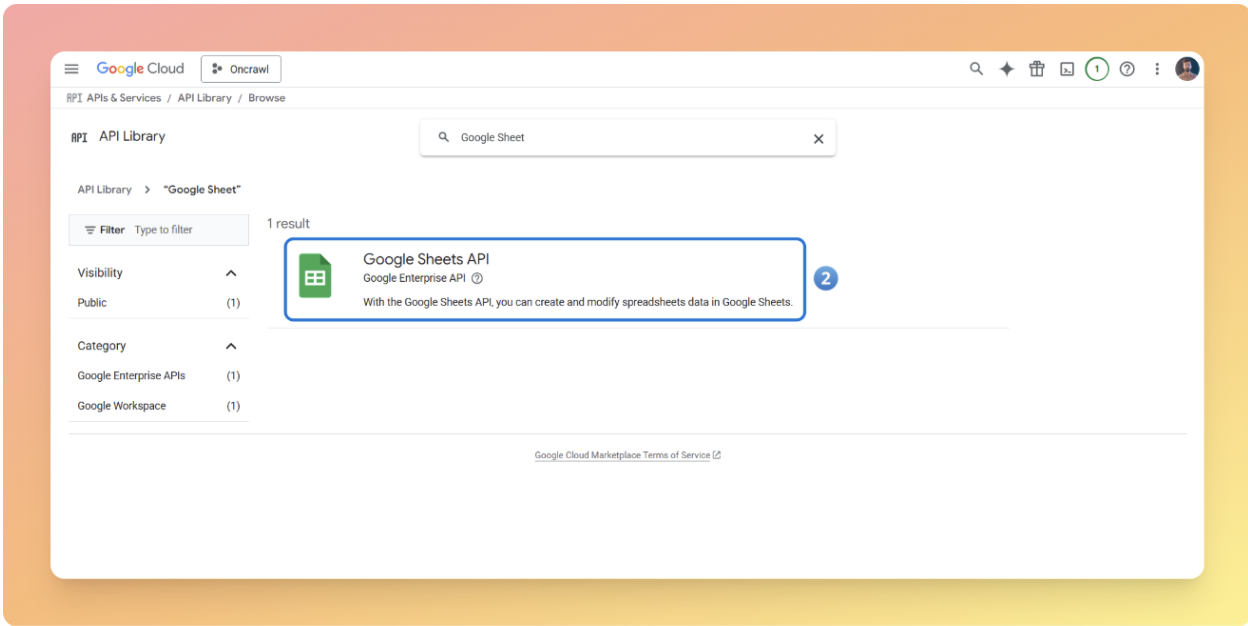
- Go to console.cloud.google.com/apis/library.
- Search for “Google Sheets API”.
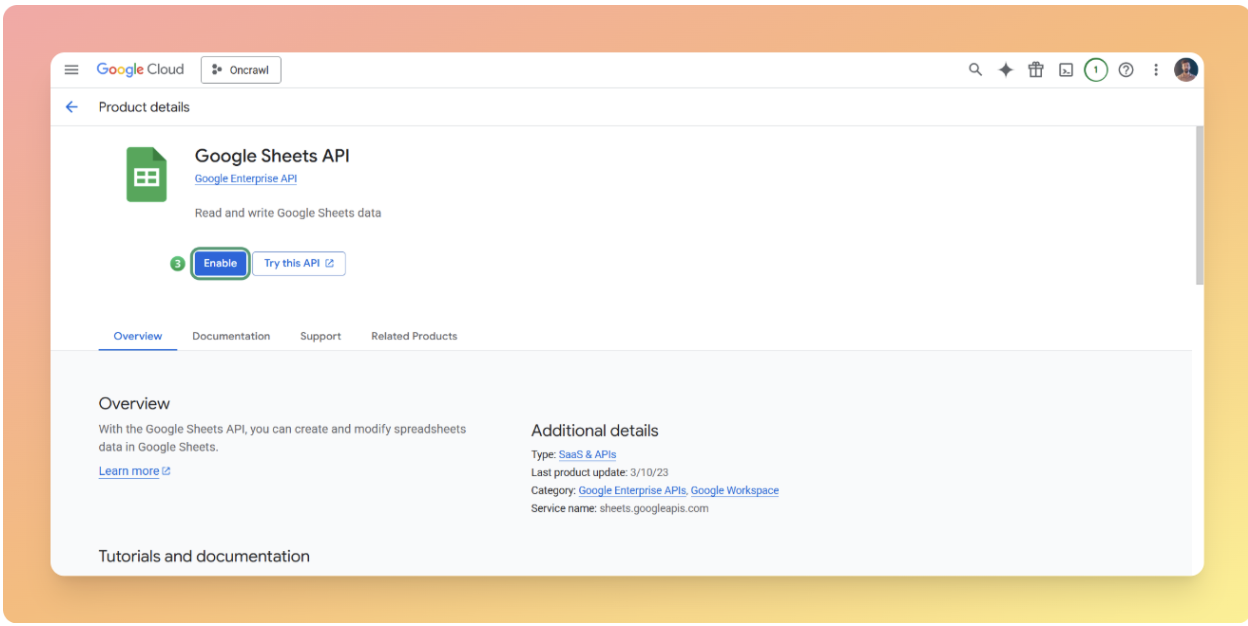
- Click Enable.
- Return to API Library (click the back arrow).
- Search for “Google Drive API”.
- Click Enable.
Step 5: Configure key project parameters
For the input data section, we need two things:
- A Google Sheets template for entering URLs and main queries.
- A file named urls_rawdata.csv that contains the URLs and the main content of your pages.
[Ebook] How your internal linking scheme affects Inrank

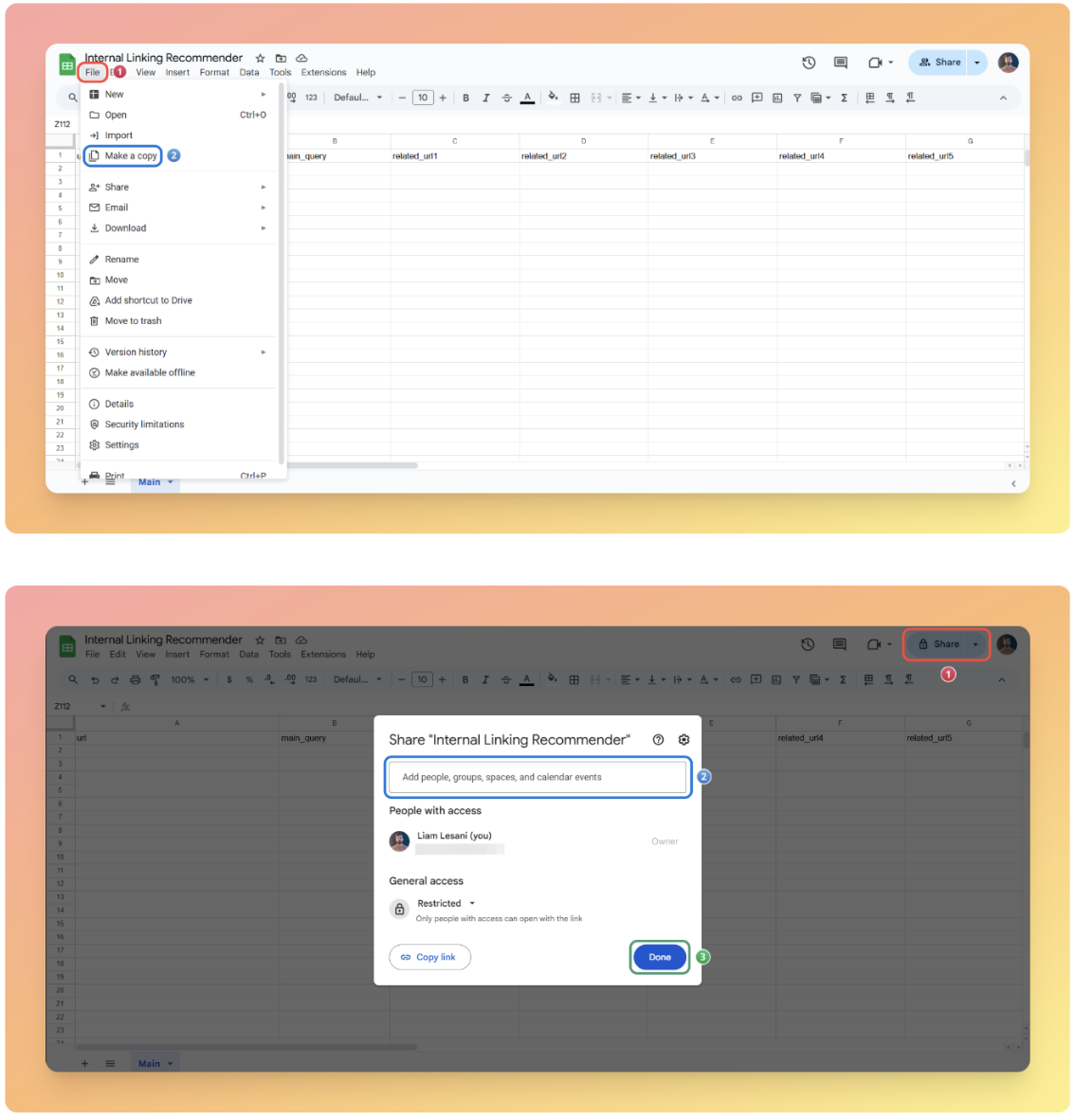
To use the template:
- Click File, then Make a copy.
- Rename your copy (e.g., “Internal Links – [Your Site]”).
- Give edit access on the copy of the sheet to the email associated with the credentials you created.
5b. Update config.py
Open the config.py file in the config folder and update the following section:

GOOGLE_SHEET_ID = "your-sheet-id"

GOOGLE_SHEET_NAME = "your-sheet-name"
Replace the values above with your own, like in the example below:
GOOGLE_SHEET_ID = "143mV47WgY5xAd0KVPFZ50cF-YaQHYJI-EJN54QR6w98"

GOOGLE_SHEET_NAME = "Main"
5c. Prepare your content data
Scrape your pages and add the URLs along with their main content into the urls_rawdata.csv file located in the Files folder.
If you’re new to scraping, check out the article about “Data Scraping and Custom Fields” and consider using Oncrawl.
Important note: This step can also be automated as a module within the internal linking recommender tool, but I preferred to keep it manual so you handle it yourself. Automating it could introduce complexities that might disrupt the entire process.
5d. SERP configuration
Return to the config.py file in the config folder and update the following line by entering your own website address:
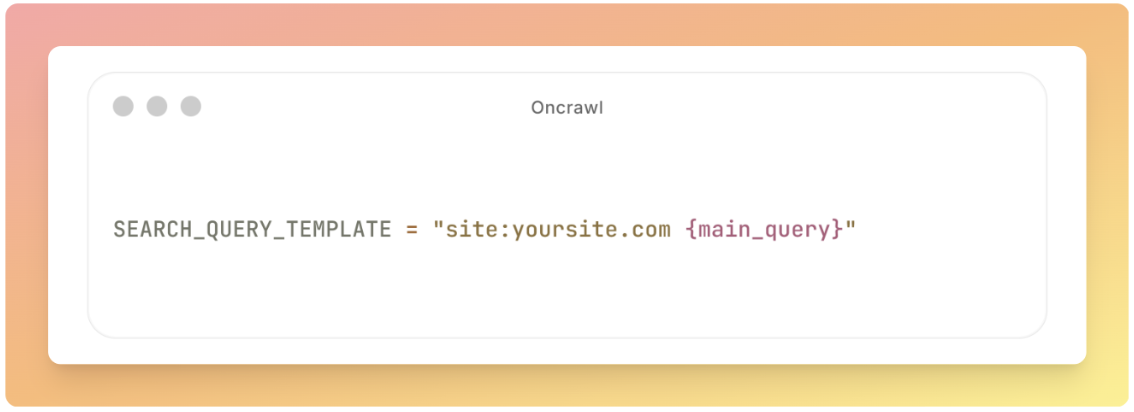
SEARCH_QUERY_TEMPLATE = "site:yoursite.com {main_query}"You can also run the scraping on a specific route. For example, if you use “site:yoursite.com/mag”, the tool will work only on that particular section of your website.
To improve the quality of the results, it is recommended to prepare a list of URLs to which you do not want to link and update the excluded_urls.txt file. Keep in mind that you can use RegEX in this file as well.
Important note: If you do not want to exclude any URLs, delete the placeholder inside the excluded_urls.txt file.
There are other options in the SERP configuration section, such as MAX_SERP_PAGES, which you can adjust.
As you probably know, the search parameter “num=100” has been dropped, and now you have to pay per request for each page. Because of that, It is recommended to set the MAX value to 2 or 3.
Important note: We use 2 or 3 pages because some of the first results might be part of our excluded URLs list.
Core implementation
Once you have completed all the installation steps, set up the environment, and configured the parameters, you can run the pipeline.

python main.py
If everything runs successfully, you’ll see the following message in the terminal at the end of execution: “Pipeline completed successfully!”
If any errors occur or the process stops unexpectedly, first check the logfile.txt in the project root. This file contains detailed, timestamped logs of all execution steps and will help you quickly identify and resolve any issues.
Testing and validation
It’s important to validate the pipeline is working correctly. You can do so in two steps.
First, for testing purposes, provide just 10 main queries and URLs as input and run the pipeline.
Once the execution is complete, check the output and make sure the results, including the Google Sheet template and Output.csv in the Files folder, meet your expectations.
Next, after confirming that the output is correct in the initial test, you can run the pipeline on the full dataset, covering all pages and queries.
Automating the pipeline
To run your project automatically on a schedule, weekly, monthly, or otherwise, without manually executing python main.py each time, you can use Cron Jobs on Linux and macOS, or Task Scheduler on Windows.
Linux and macOS setup
1. Create a simple shell script to activate the virtual environment.
2. Run the project.
3. Create a file named run_main.sh in the project root with the following content:
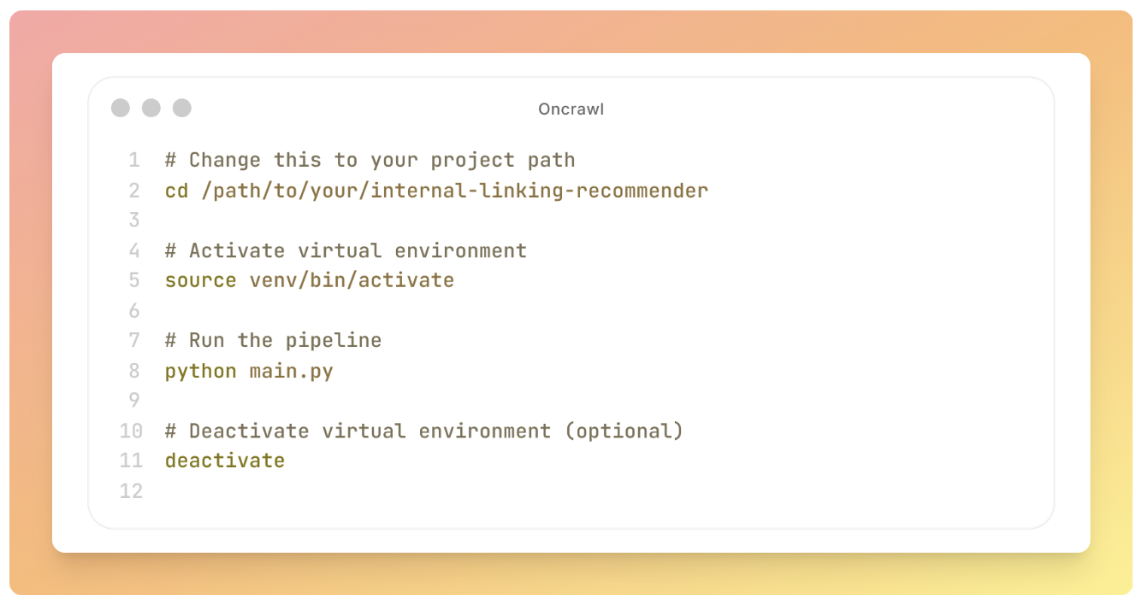
# Change this to your project path
cd /path/to/your/internal-linking-recommender

# Activate virtual environment
source venv/bin/activate

# Run the pipeline
python main.py

# Deactivate virtual environment (optional)
deactivate
4. Make the script executable.

chmod +x run_main.sh
Set up the cron job
1. Open the cron editor by running crontab -e.

2. Add your cron job.
For example, to schedule the script to run every Sunday at 3 AM: 0 3 * * 0 /path/to/your/internal-linking-recommender/run_main.sh
A cron job works like a scheduling command and has five standard fields separated by spaces (*****). Each field controls a specific part of the schedule.

3. After adding the cron job, save and exit.
4. It will automatically become active and run according to the schedule.
Windows setup
1. Create a file named run_main.bat in the project root with the following content:
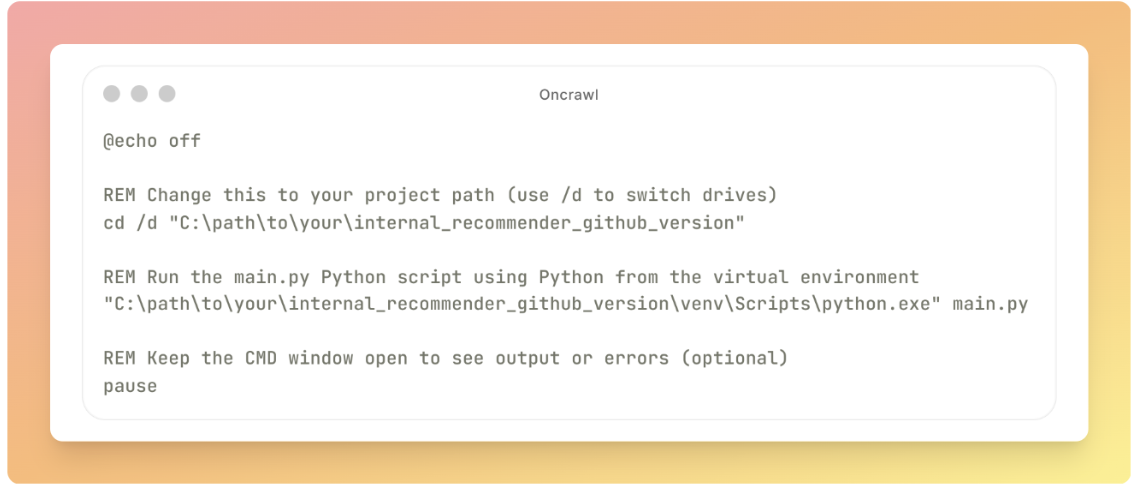
@echo off

REM Change this to your project path (use /d to switch drives)
cd /d "C:\path\to\your\internal_recommender_github_version"

REM Run the main py Python script using Python from the virtual environment
"C:\path\to\your|internal_recommender_github_version\venv\Scripts\python.exe" main.py

REM Keep the CMD window open to see output or errors (optional)
pause
2. Open the Task Scheduler.
3. Click Start.
4. Search for Task Scheduler and open it.
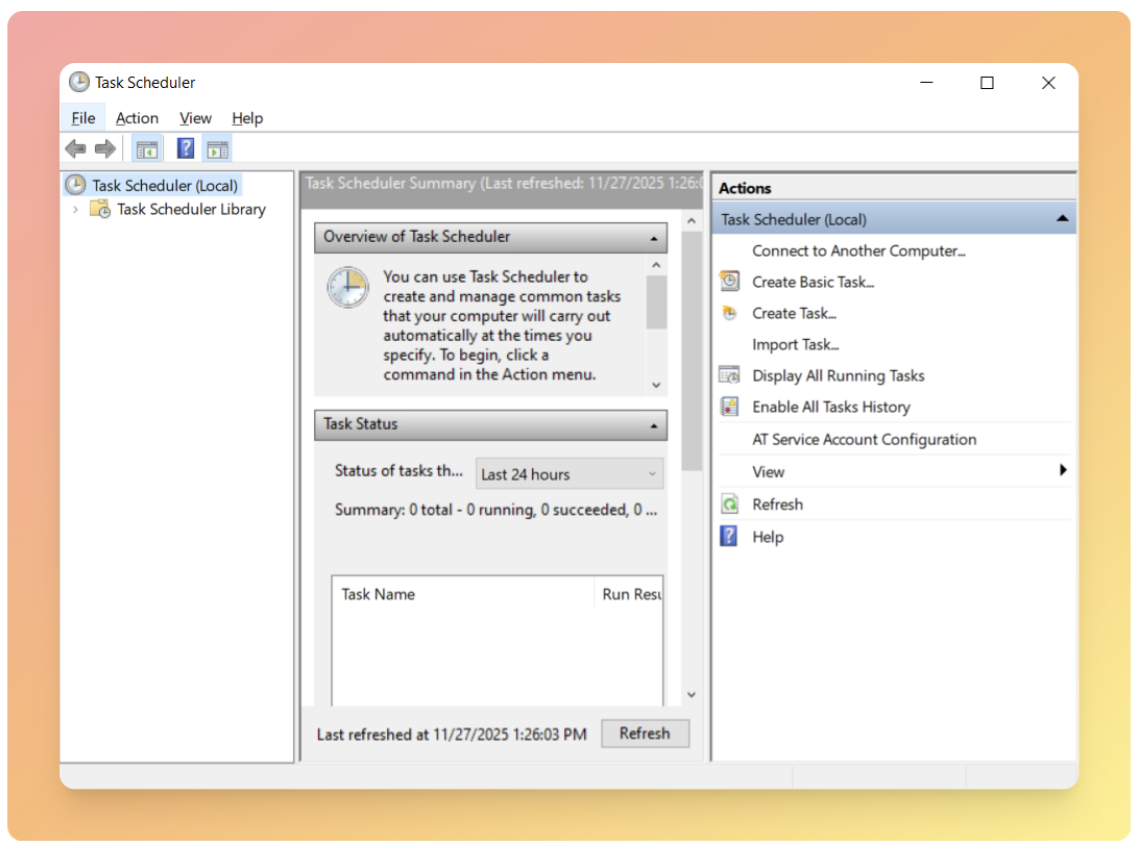
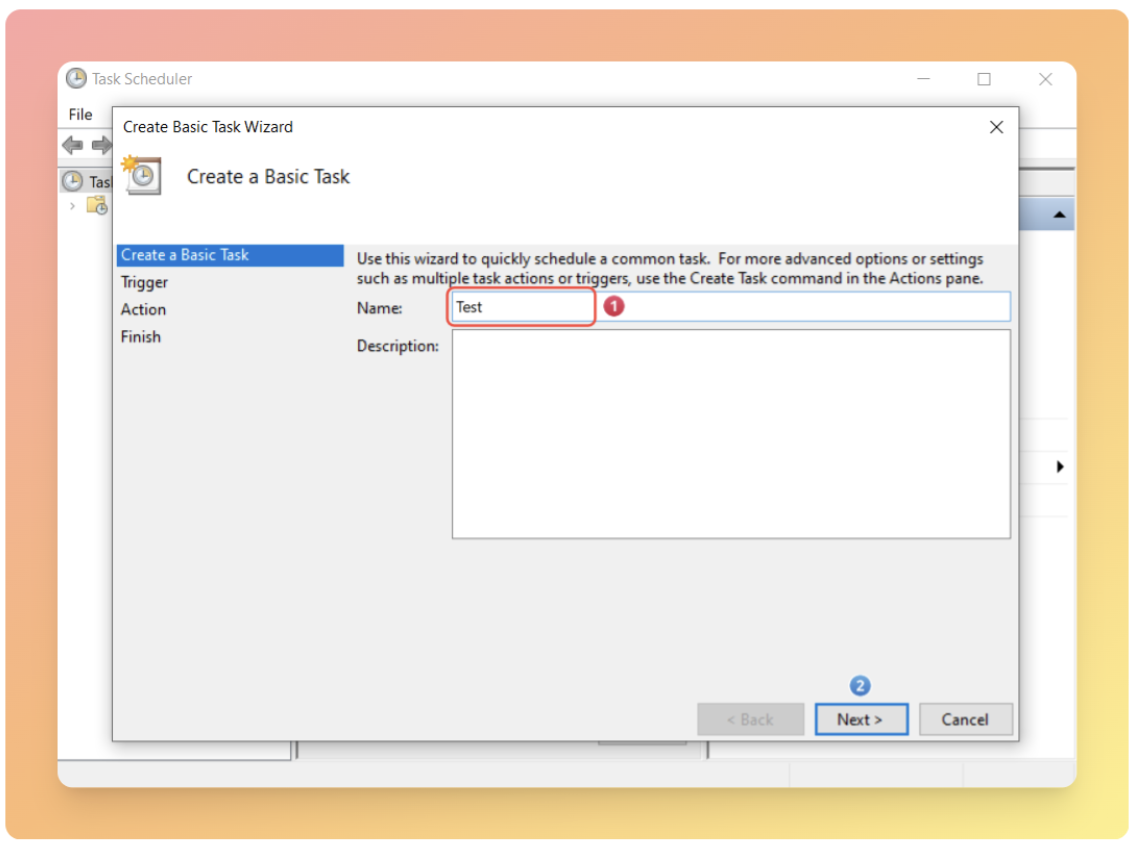
5. On the right, click Create Basic Task.
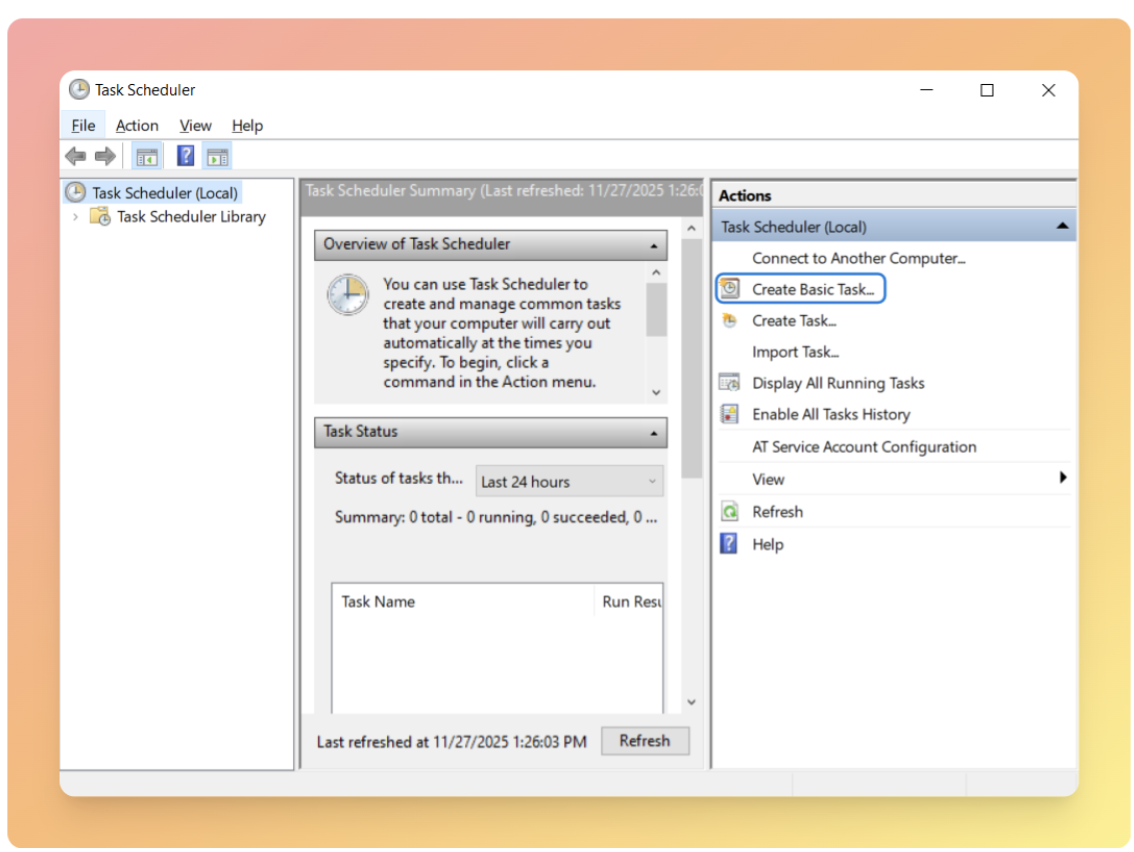
6. Give the task a name and description, then click Next.
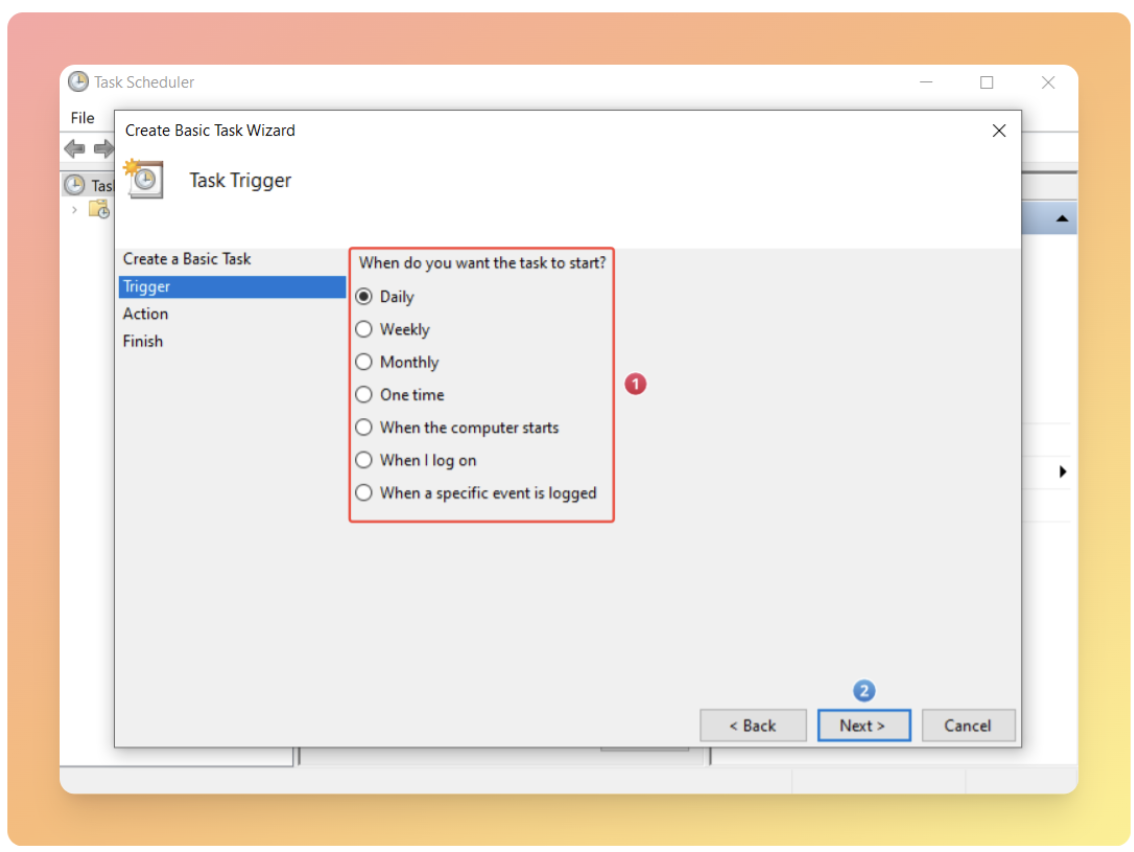
7. Set the Trigger to your preferred schedule, such as weekly or monthly.
8. Click Next.
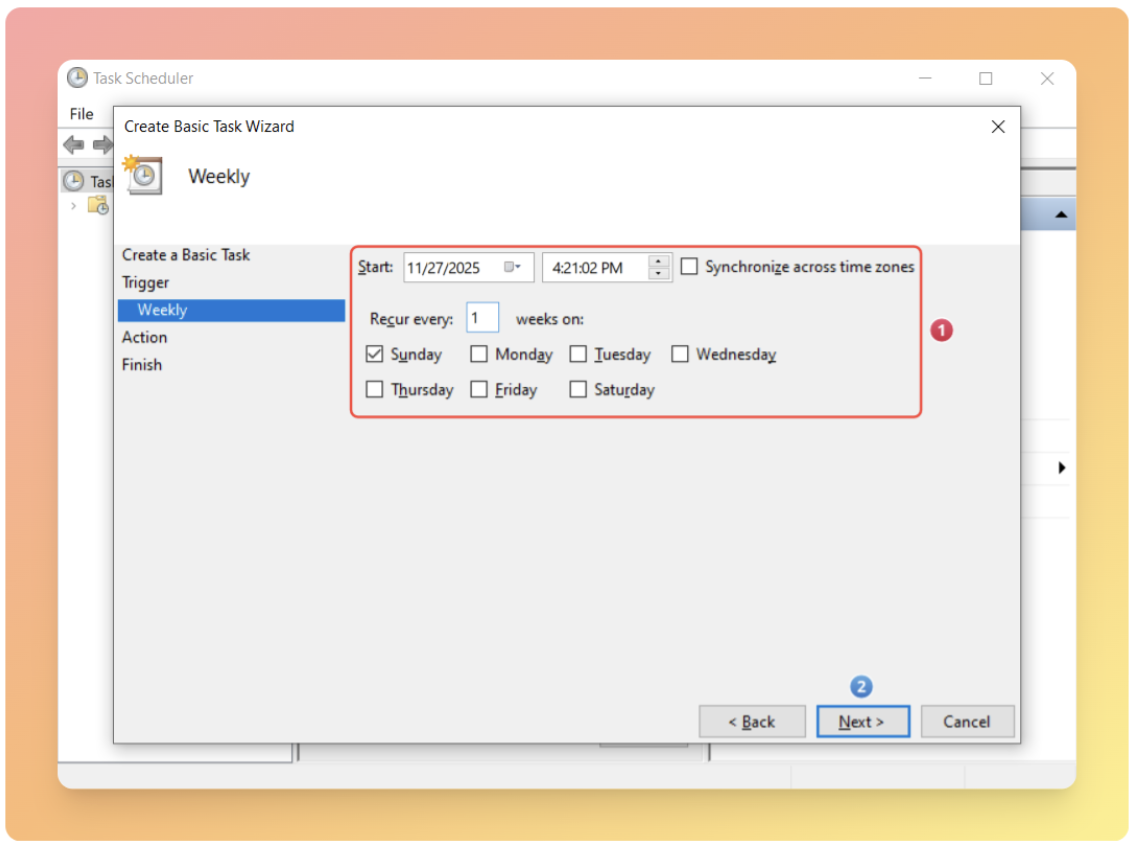
9. Choose the day and time you want the task to run, then click Next.
10. In the Action step, select Start a program.
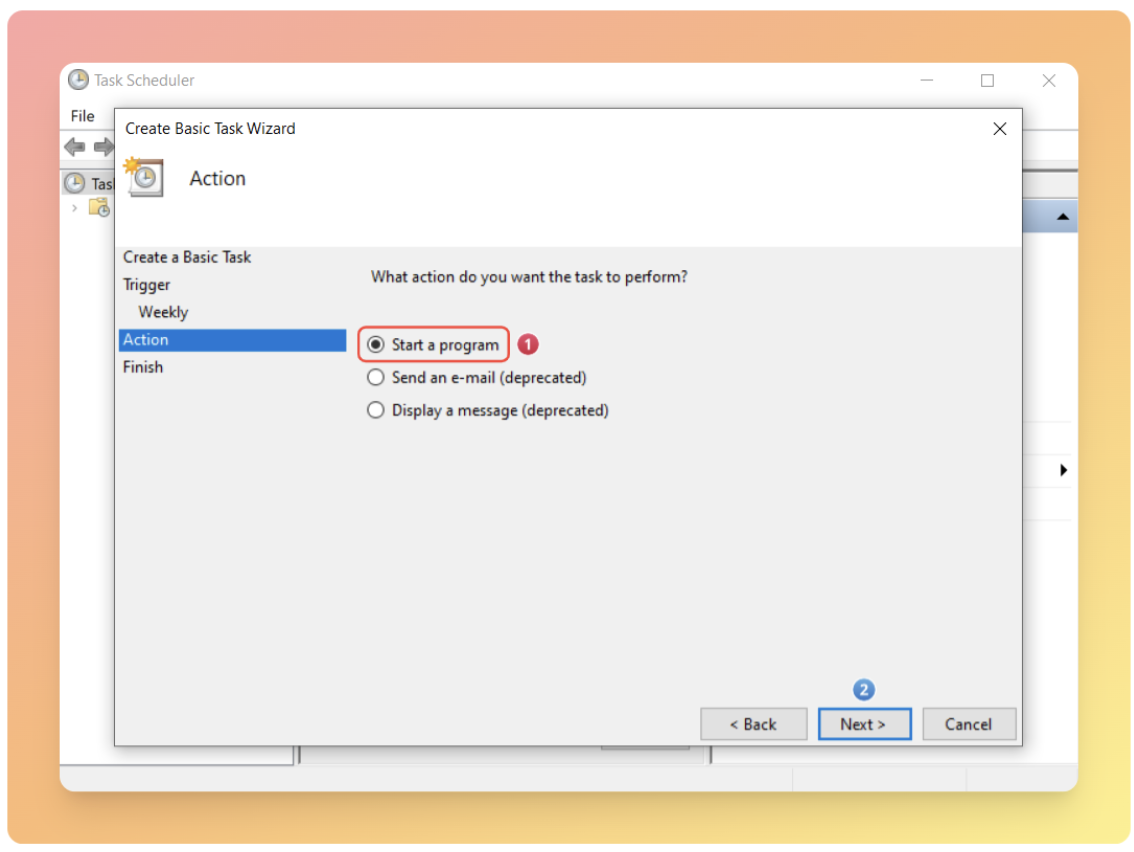
11. In Program/script, enter the path to your run_main.bat file.
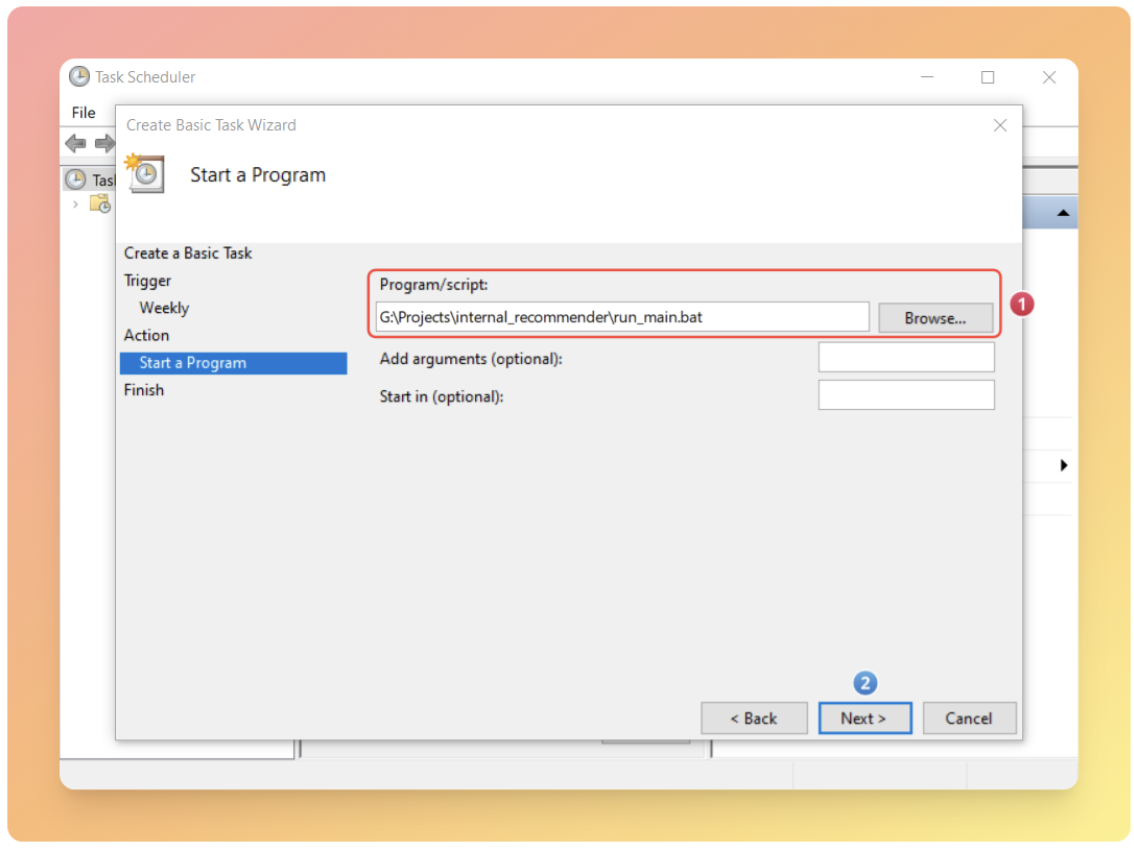
12. Click Finish to save the task.
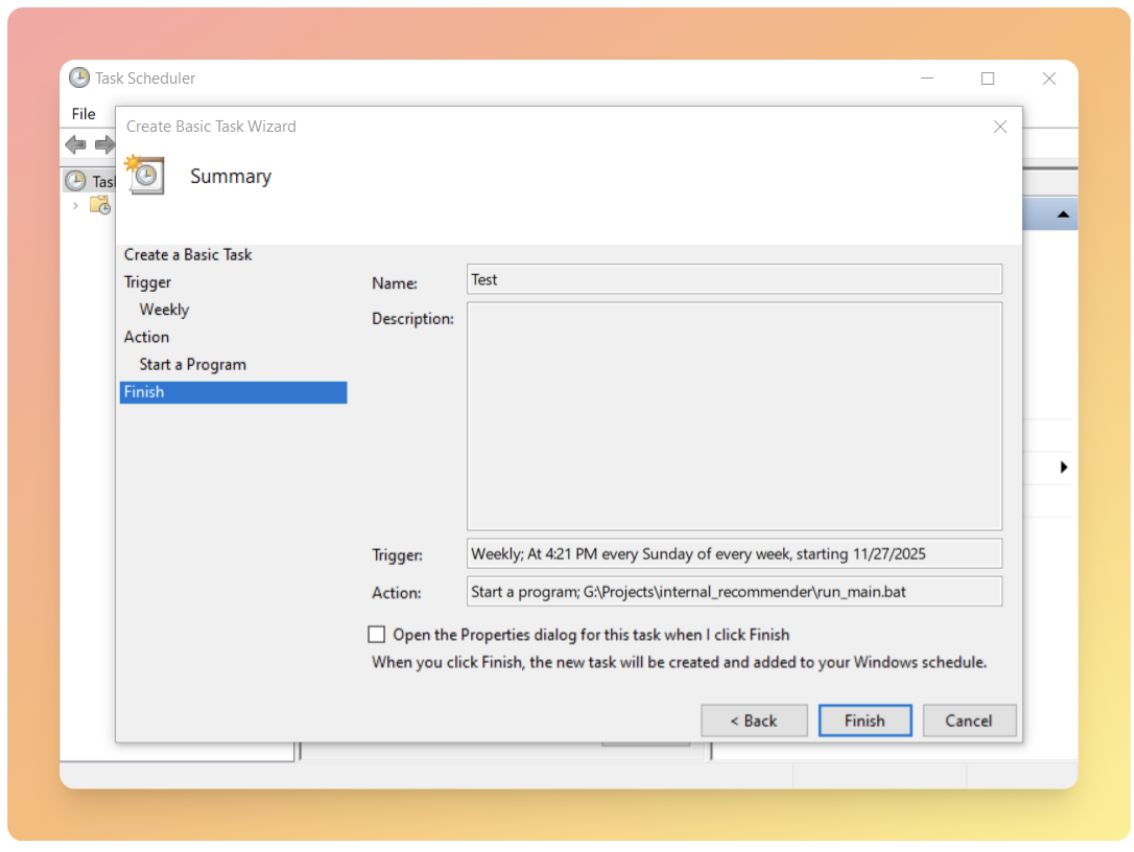
To make sure everything is set up correctly, temporarily set the schedule to run in one minute and check the logfile.txt to confirm the pipeline executed successfully.
Common issues
Once you have taken the time to implement the technical setup detailed above, don’t let operational missteps undermine the effectiveness of your internal linking recommender. Below are three common pitfalls to avoid.
Over-prioritizing relevance at the expense of user engagement
Focusing solely on SERP and semantic similarity results while ignoring user behavior can make the links highly relevant, but it might result in lower user engagement.
In internal linking, our primary goal extends beyond boosting topical authority; we also aim to encourage users to interact with our site. For this reason, we recommend setting up events in Google Tag Manager and use Google Analytics to track how users click on links. This allows you to monitor whether engagement increases or decreases after implementing changes.
Noisy SERP outputs due to insufficient filtering
Automation without filtering the data can make SERP outputs very noisy. For example, if we want to use this tool only within blog posts on our magazine section to link to related posts, not specifying excluded URLs could result in irrelevant pages – like category pages, landing pages, and others – appearing as suggestions.
Reduced embedding quality from scraping entire pages
Scraping the entire page content instead of just the main content increases both the cost of generating embeddings and reduces their quality.
When creating your urls_rawdata.csv file, ensure you extract only the primary article text, not navigation menus, headers, footers, sidebars, or other page elements.
These extraneous elements dilute the semantic meaning of your content, resulting in poor similarity calculations and irrelevant recommendations.
Closing thoughts
We have walked through building an internal linking recommender that combines the power of Google’s search algorithm with semantic similarity analysis to automate one of SEO’s most time-consuming challenges.
By automating link discovery while maintaining quality and relevance, it enables SEO teams to scale their internal linking efforts without sacrificing effectiveness.
Key takeaways:
- Start small: Test with 10 URLs before scaling.
- Monitor user engagement alongside topical authority metrics.
- Regularly update your excluded URLs list to maintain recommendation quality.
- Consider extending the tool to automate content briefs with pre-populated internal link suggestions.
Next steps
Once you’ve implemented internal links based on the tool’s recommendations, consider extending its capabilities:
- Content brief automation: Include relevant internal link suggestions at the end of each content brief, ensuring new articles are planned with strategic linking in mind from the start.
- Performance monitoring: Track which recommended links drive engagement and conversions, then refine your exclusion rules and SERP queries based on what works.
- Continuous optimization: Schedule regular pipeline runs to keep your internal linking structure updated as you publish new content and as Google’s understanding of topical relationships evolves.
Internal linking is not a one-time task, it’s an ongoing process that strengthens as your site grows. This tool provides the foundation for maintaining a scalable, semantically coherent linking strategy that serves both search engines and users.